

 Email Management
 Artificial Intelligence
 Physical Archive Management
 Document Lifecycle
 Library Management
 Security and Compliance
 QR Code Generator
 McFile for Office 365
 McFile for Business Central
 McFile for Outlook
 Electronic Signature
 Compliance
 Legal
Legal Construction
 Human Resources
 Energy
 Healthcare
 Project Management
 Digitization Services
 Educational Institution
 Retail
 Cases
Cases Blog
Blog What’s New
 About us
 For developers
 For Users
 Contact
Turn non-searchable PDFs into searchable, text-selectable files with McFile’s OCR in just a few clicks. Read on to learn how this feature delivers a simple, efficient way to work with your documents.
What is OCR and OCR processing?
Optical Character Recognition (OCR) is a technology that identifies typed, handwritten, or printed text and converts it into machine-readable characters. OCR processing refers to the application of this technology.
When you apply OCR to a scanned document, for example, the PDF viewer can interpret the file as actual text rather than an image. As a result, the document becomes text-selectable, allowing you to copy and paste its content, and fully searchable.
This means OCR can be used as an effective way to extract information from documents you need to work with.
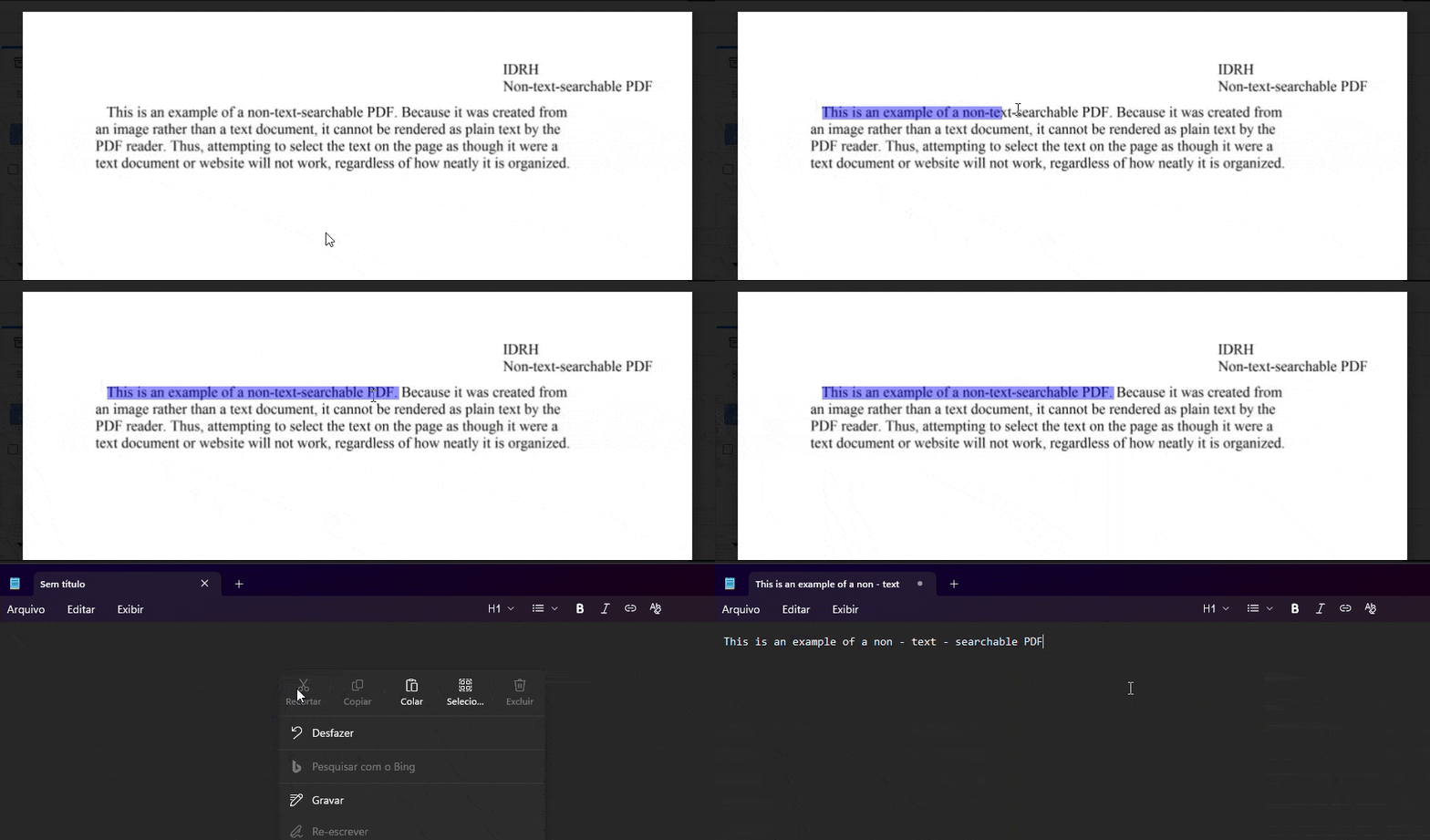
How do I apply OCR to my PDFs?
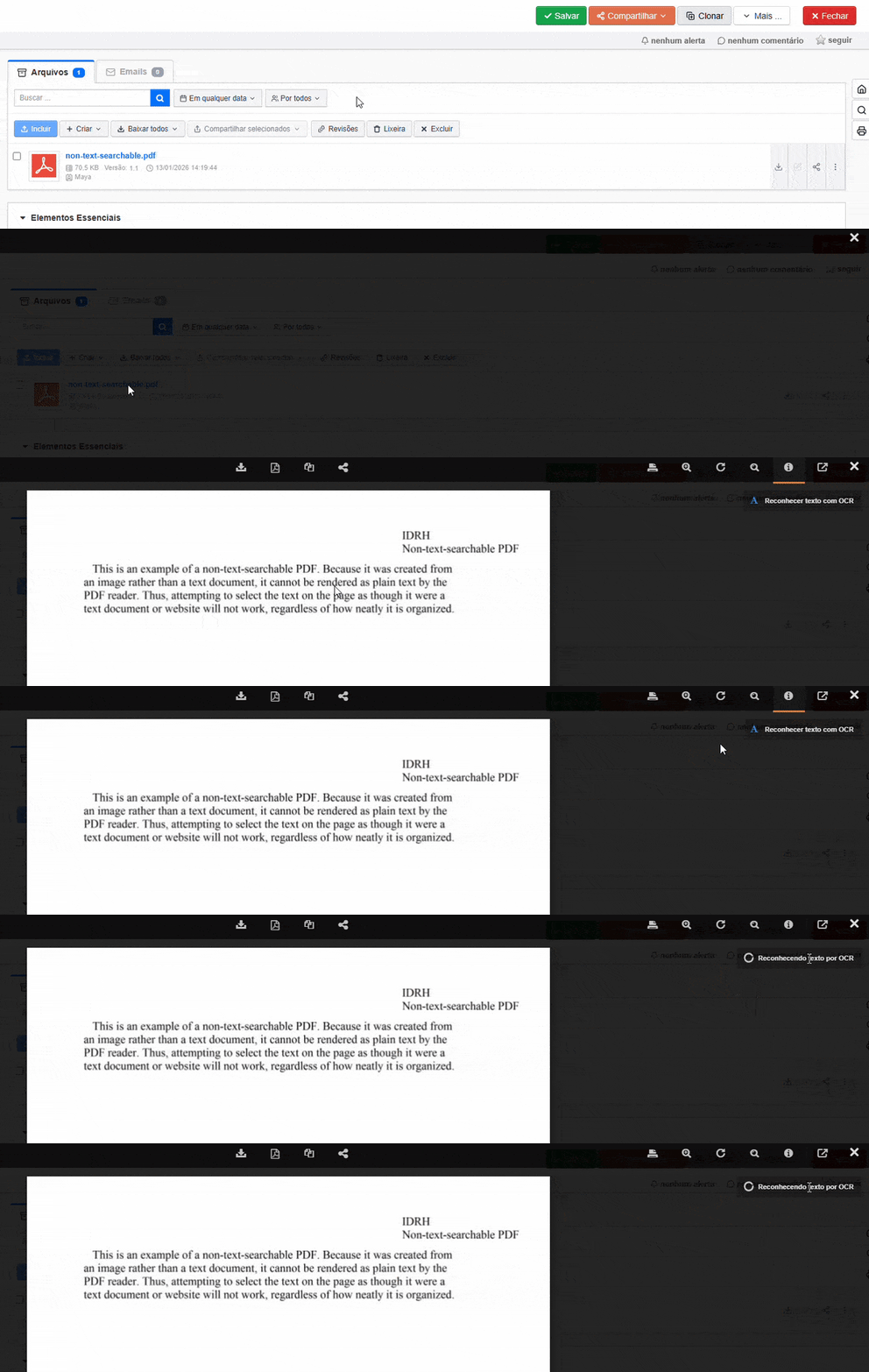
Applying OCR to your PDFs is simple. Just open a file in the McFile viewer, click “Run OCR,” and wait for the process to complete.
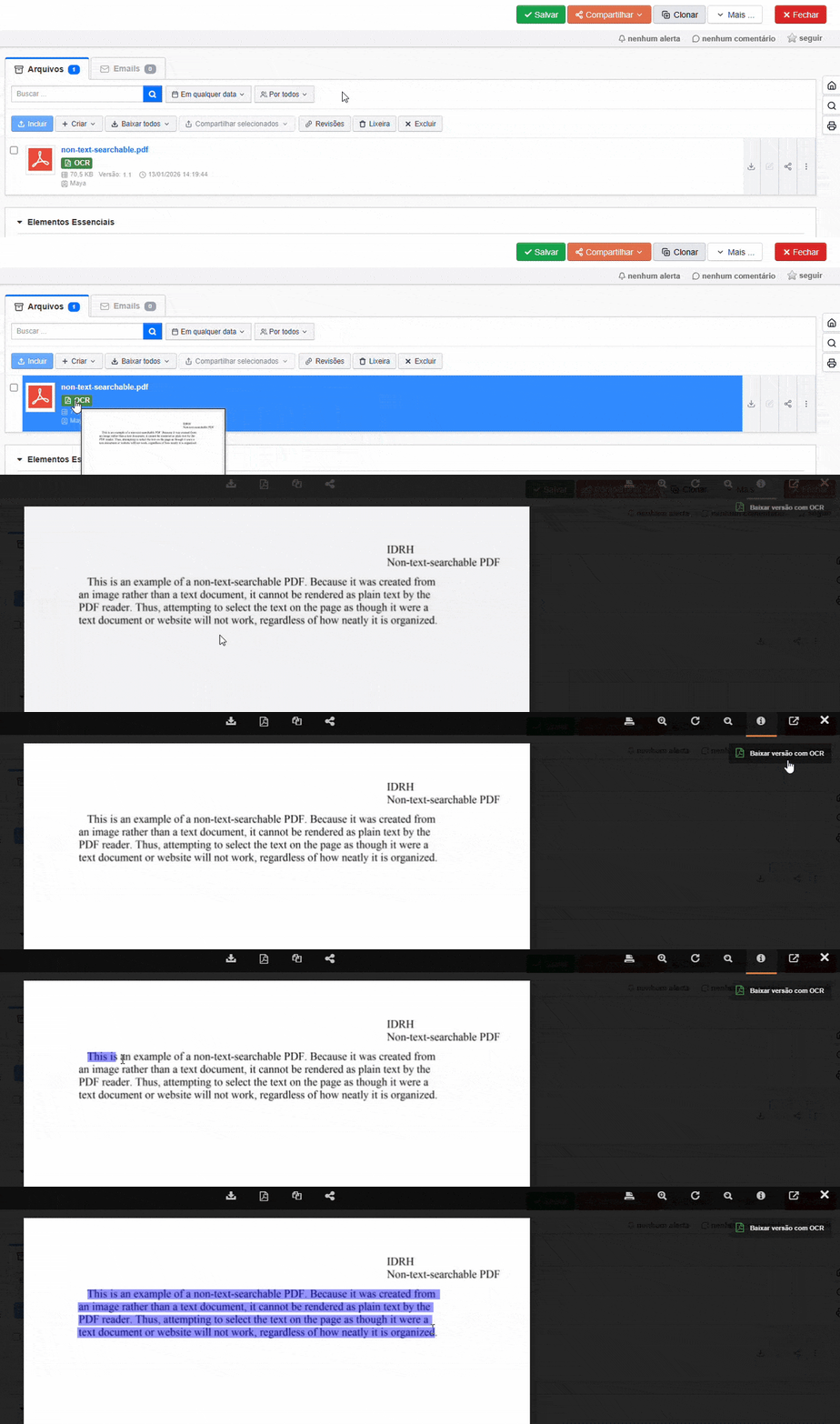
Once OCR processing is complete, you can download the OCR-enabled version directly from the viewer or confirm it’s ready by looking for the “OCR” badge on the file.
How does OCR work in McFile?
In McFile, OCR does not modify the original file. Instead, it allows you to download a separate OCR-enabled version with recognized text.
This means that if you download the PDF normally, it will not be text-selectable on your device. To access the searchable, selectable version, be sure to choose the “Download OCR-enabled version” option.
In addition, once a PDF is OCR-enabled, it becomes fully searchable. This means that within McFile, you can find the file through the platform’s file search. In other words, the system can index and retrieve documents based on the words contained in those PDFs.
Is OCR already available for me to use?
Yes! You can already use this feature in your environment. There are no additional restrictions to download the OCR-enabled version; however, to apply OCR, an administrator must enable the “OCR – Text Recognition Request” permission, as shown below.
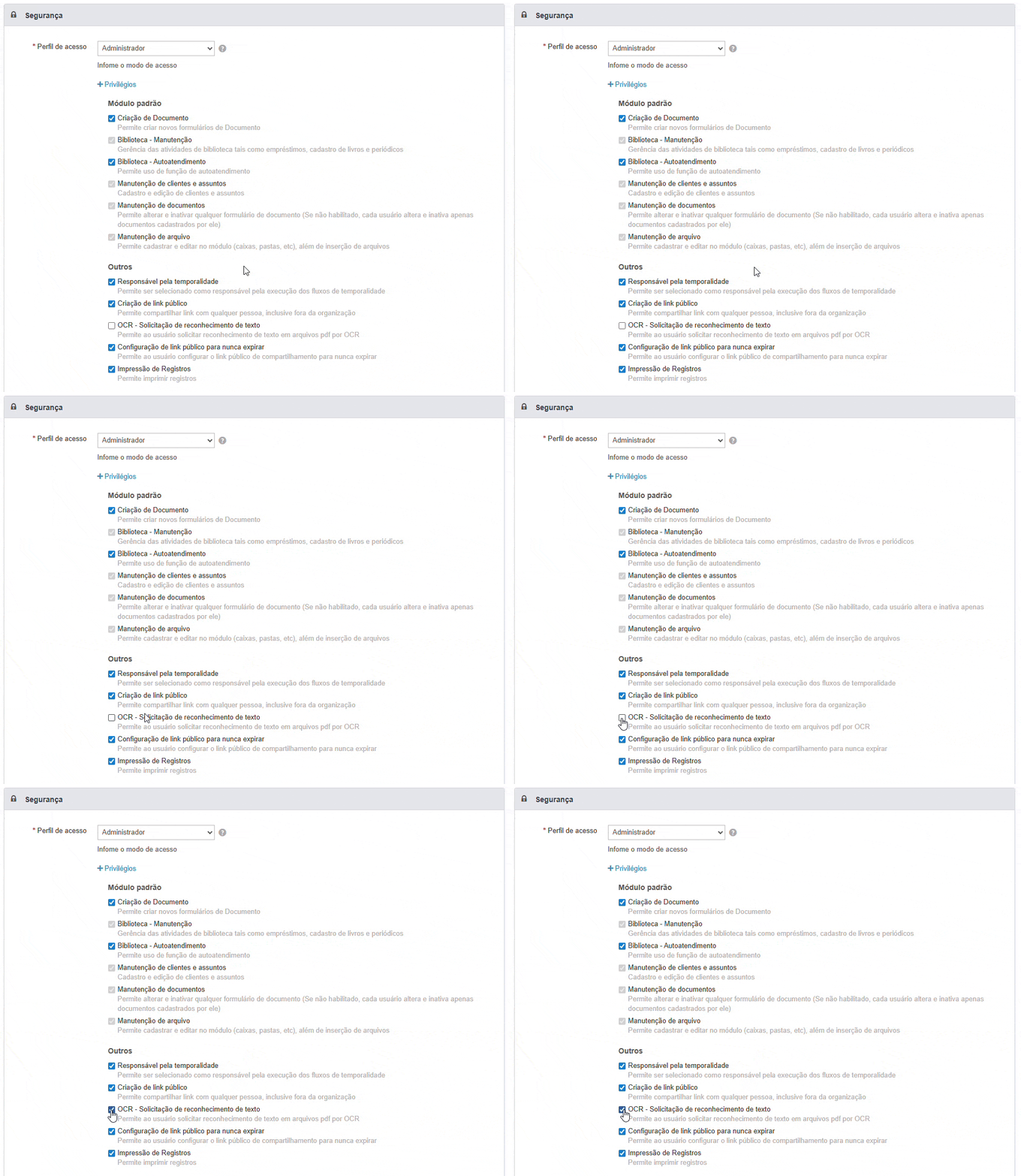
Once the permission is enabled, the user must log out of McFile and log back in for the changes to take effect.
In addition, there are a few important usage guidelines for OCR: the solution includes a monthly allowance of 1,000 OCR-processed pages. This usage is calculated based only on the pages that are actually processed, so the same PDF may count toward only part of that monthly allowance. If your operation requires a higher volume, additional page packages can be purchased — contact our sales team to size the best package for your business. To ensure the best OCR experience, make sure each PDF contains fewer than 1,000 pages and is smaller than 500 MB.
Enhance your documents with McFile’s OCR
With OCR, you can enable intuitive and efficient data extraction and search across your PDFs within McFile. Enable the permission for your users and start using this feature today to streamline and optimize your workflows. If you’re not yet a customer, try McFile for free and see firsthand how the platform can transform your business.
McFile. Drive your efficiency.