

 Email Management
 Artificial Intelligence
 Physical Archive Management
 Document Lifecycle
 Library Management
 Security and Compliance
 QR Code Generator
 McFile for Office 365
 McFile for Business Central
 McFile for Outlook
 Electronic Signature
 Compliance
 Legal
 Construction
 Human Resources
 Energy
 Healthcare
 Project Management
 Digitization Services
 Educational Institution
 Retail
 Cases
 Blog
 What’s New
 About us
 For developers
 For Users
 Contact
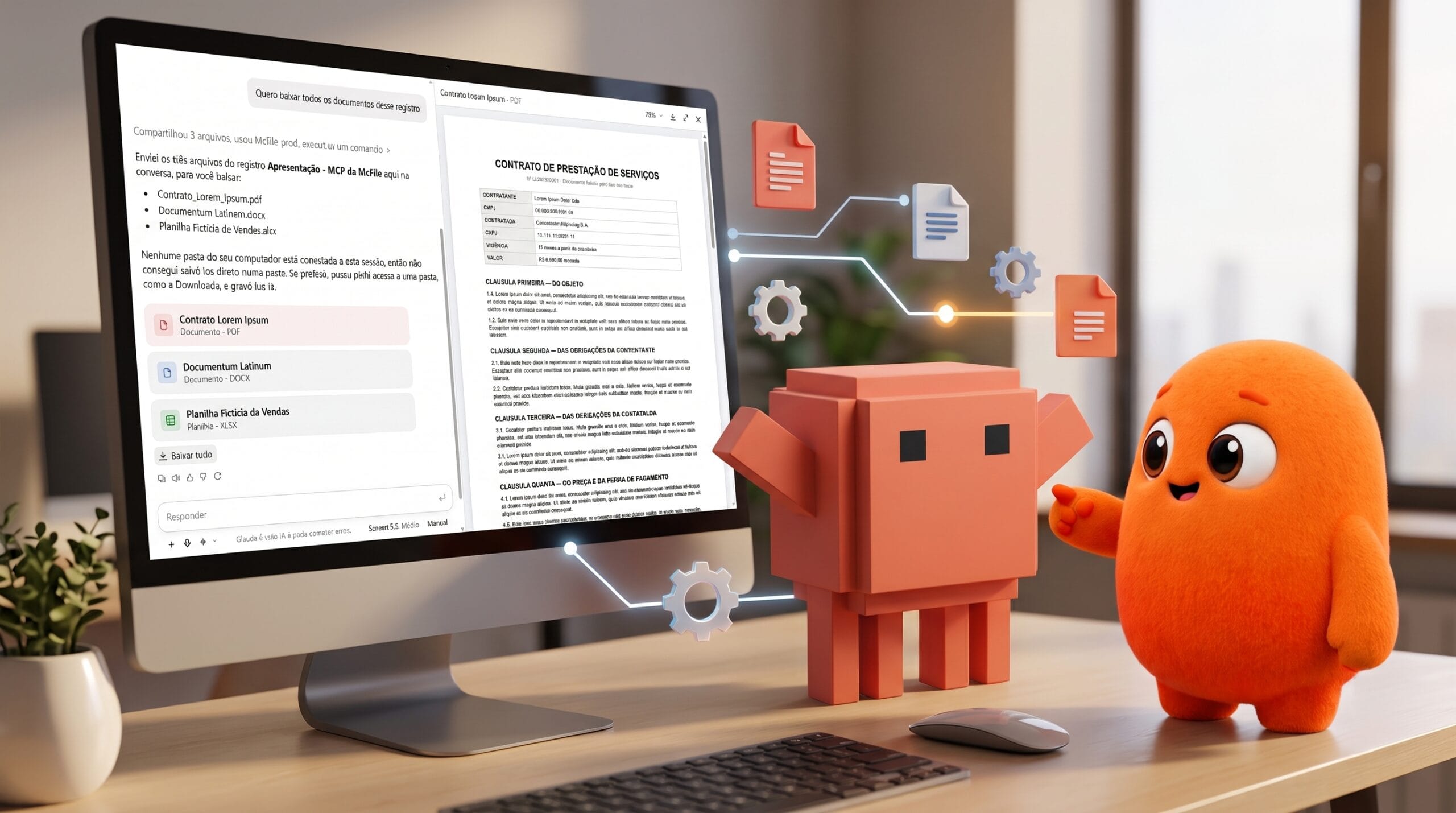
McFile MCP: Claude can now download, edit, and save files to your records!
When we introduced Maya, McFile’s AI assistant, we also mentioned that you could connect McFile to Claude through the McFile MCP, allowing you to access and query your documents without leaving the conversation.
Now, the MCP has taken things a step further. Claude doesn’t just read your documents anymore: it can download the original file, work on it, and save the result back to the correct record. And if the record doesn’t exist yet, Claude can create it too.
What’s new in the McFile MCP?
- Download original files: PDFs, Word documents, Excel spreadsheets, images, or any other format, exactly as they are stored in McFile. Claude can bring the file into the conversation or save it to a folder on your computer.
- View images: photos, logos, and scanned documents stored in your records.
- Upload files to a record: a file you shared in the conversation or one that Claude created or edited can be saved as a new file or as a new version of an existing file.
- Create new records: for documents that aren’t in McFile yet, with the record details suggested by Claude.
In practice, this means the entire workflow happens in a single conversation. You make a request, Claude gets the job done, and the result is already saved in McFile.
What can you do with the McFile MCP?
Transcribe a scanned PDF.
You know those scanned documents that are just images, with no OCR, where you can’t select or search the text? Claude downloads the file and reads the pages just like a person would.
“The delivery report for the ‘Obra Centro’ record is scanned. Transcribe the text and save a Word version to the same record.”
In just a few minutes, the transcribed text becomes a new document, saved alongside the original, which remains untouched.
Split a PDF into multiple files.
Scanned multiple documents at once and ended up with a single PDF?
“This 30-page PDF contains several receipts combined into one file. Split it into separate files, one for each receipt, using the supplier’s name and date as the filename, and save everything to the ‘Despesas Outubro’ record.”
Claude splits the pages, suggests a filename for each document, and asks for your confirmation before saving.
Edit a document and save it as a new version.
“In the draft service agreement for Alfa, change the effective date to January 1, 2027, and save it as a new version.”
Claude downloads the Word draft, makes the change, and uploads the file back to the record. Before saving, it confirms whether the file should be added as a new version or as a new file. Previous versions remain محفوظ in the record’s history.
The same goes for spreadsheets:
“Apply a 5% increase to the pricing spreadsheet in the ‘Tabela de Preços 2027’ record and save it as a new version.”
Create a new document from multiple files.
“Read Alfa’s contract and the two amendments, then create a consolidated summary in Word and save it to the same record.”
Claude reads the documents, writes the summary, and saves the finished file exactly where it belongs. No copying, pasting, or downloading required.
From chat to record
Received a file by email or have a spreadsheet on your computer? Send it to Claude in the conversation and ask:
“Attach this spreadsheet to the ‘Despesas Outubro’ record.”
If the document doesn’t have a record in McFile yet, just ask:
“Create a new record for this document.”
Claude reads the file and suggests all the record details: description, document type, department, and company. It also asks which subject the record should be associated with. You can confirm or make adjustments, and Claude creates the record with the file already attached.
Get a file from McFile and use it wherever you need
“Download the report from the ‘Obra Centro’ record and save it to my Downloads folder.”
“Use the logo stored in the Beta client’s record to create the presentation cover.”
Claude retrieves the original file from McFile and delivers it wherever you need it: in the conversation, in a folder on your computer, or embedded in a new document.
Security: Your files are protected with the McFile MCP
Allowing an AI to save files requires trust. That’s why the McFile MCP was designed with the following principles:
- ou confirm before saving: nothing is created or saved in McFile without your authorization.
- Claude asks whenever it’s unsure: which record to use, what filename to choose, and whether to save it as a new file or a new version.
- Nothing gets deleted: Claude cannot delete files or records, and saving a new version never overwrites previous ones.
- Files being edited are protected: if someone else is editing a file, Claude won’t overwrite it.
- Your permissions apply to Claude: it can only download files you’re authorized to access and save files to records where you have permission to upload files.
- Everything under your name: saved files appear in McFile under your user account, just as if you had uploaded them yourself. Downloads are also recorded in McFile’s audit log, just as they are on the platform.
- Record details are always validated: Claude only uses document types, departments, companies, and subjects that already exist in your McFile and that you are authorized to view.
What do you need to use the McFile MCP?
- MCP enabled in your environment: your company’s McFile administrator is responsible for enabling it.
- Access to Maya: the MCP uses the same AI access provided by McFile.
- McFile connected to Claude: follow the step-by-step instructions in the How to Connect McFile to Claude article in our Help Center.
- File creation and editing enabled in Claude: to download, edit, and upload files, Claude uses this feature, which must be enabled and granted permission to access mcp.mcfile.com. For Claude Enterprise accounts, this feature must be enabled by the Claude account administrator.
Without step 4, Claude can still search, read, summarize, and create records in your McFile. It just won’t be able to download, edit, or upload files.
Frequently Asked Questions About the McFile MCP
Does the edited file replace the original? No. It is saved either as a new file or as a new version, depending on your choice. Previous versions remain available in the record’s history.
What file formats can Claude download and upload? Any format, including PDFs, Word documents, Excel spreadsheets, images, compressed files, and more. Each file can be up to 50 MB in size.
Can Claude edit a PDF? To modify text, it’s best to work with the document in Word, which preserves the formatting. For splitting, merging, or transcribing PDFs, Claude can work directly with the PDF.
Can Claude create a new company or subject? No. It can only create document records. If the company or subject doesn’t exist yet, you must create it in McFile first.
How much does it cost? Using the MCP consumes the AI credits already available in your McFile environment, and usage is very low: downloading or saving a file uses only a small fraction of a credit. In practice, you can use it daily without worrying about your balance. And unsuccessful actions are not charged.
Fewer clicks, better results.
With the new McFile MCP features, all the back-and-forth of downloading, editing, and re-uploading files is now handled by Claude. All you have to do is review and confirm. Ask your company’s administrator to enable the MCP, connect Claude, and give it a try!
If you are not yet a client, try McFile for free and see firsthand how the platform can transform your business.
McFile. Drive your efficiency.